

Using the content block
Edit in CMSThe blocks that bring outside content into your newsletter — the Curations block, the RSS block, and the URL block — are really one content block wearing three hats. They share the same settings panel, the same styling controls, and the same source selector, so wherever a block gets its content from, you configure it the same way.
Choose where a block gets its content
Section titled “Choose where a block gets its content”Open any content block and, just under the block title, you’ll see a source toggle:
- From Library — pull from your Curations library: everything you’ve saved from RSS feeds, your WordPress site, the browser extension, or the API. This is the default.
- From URL — expand a single link you paste in, for a one-off story that isn’t in your library.
Whichever you choose, the rest of the block’s controls are the same.
Which source fits the job
Section titled “Which source fits the job”Both sources keep your newsletter aligned with what you already publish elsewhere — no copying and pasting — but they suit different jobs.
From Library (the Curation block) — recommended for most use cases. It connects to your Curations library, where all your sourced content lives:
- your own site or blog via RSS feeds
- your WordPress site via the WordPress plugin
- articles saved with the browser extension
- content pushed via API integrations
- manually added articles
Because it draws on a managed library, it’s built for scale: bulk content management, tag-based filtering, reuse across templates, and automation. You can tag items right in the library table, apply text formatting inside the block, and reorder images.
From URL — quick one-off links. Paste a URL and the block fetches the page’s Open Graph data (headline, image, description). Best for highlighting a one-off “Top Story,” or featuring content that isn’t in your library. It’s added manually each time, can’t be automated or reused across templates, and isn’t connected to your library. If a URL won’t pull, see why some links can’t be fetched.
The same controls, whatever the source
Section titled “The same controls, whatever the source”A block set to From URL gets the full set of content controls that curation blocks have always had — not a stripped-down subset. That means the same:
- layout options for how items are arranged;
- display options — title, excerpt, image, author, source, and date;
- image ratio and cropping;
- call-to-action styling and the inline “Read more” link;
- border, background and text color, font, and padding.
Because every content block draws from one shared set of controls, a feature that lands on curation blocks — like tags shown on a card, or a new call-to-action style — shows up on your URL and RSS blocks too, with nothing extra to set up.
Load your content
Section titled “Load your content”Once you’ve picked a source and styled the block, load it:
- From Library — set your search, source, tags, and date filters, then click Load. See adding curated content.
- From URL — paste the link in the Source field and click Load. See expand a single link.
- RSS block — choose your feed and click Load. See pull a feed in with the RSS block.
Expand a single link
Section titled “Expand a single link”A block set to From URL turns one link into a rich preview: an article, an event, a post. It reads the page’s Open Graph information, so a page that doesn’t publish it may not load, and some sources, such as Twitter/X, aren’t supported. Contact support to ask about a particular site.
The block shows a link’s title and excerpt by default. Other fields the page provides, such as the image, author, source and publication date, stay off until you switch them on in the block’s display options, and a field you’ve switched off stays off when you load a new link. You can set these before you load anything, which is handy in a template or a block whose link is filled in at send time; a field the page has nothing for simply doesn’t appear. The bulleted-link style works the same way, with the call-to-action button and the inline “Read more” link still available.
Pull a feed in with the RSS block
Section titled “Pull a feed in with the RSS block”The RSS block pulls the latest articles from one of your feeds straight into a campaign, which makes it a natural fit for automations. If you only want to share one or two specific articles, expand them as links instead: a feed can change between when you compose and when you send.
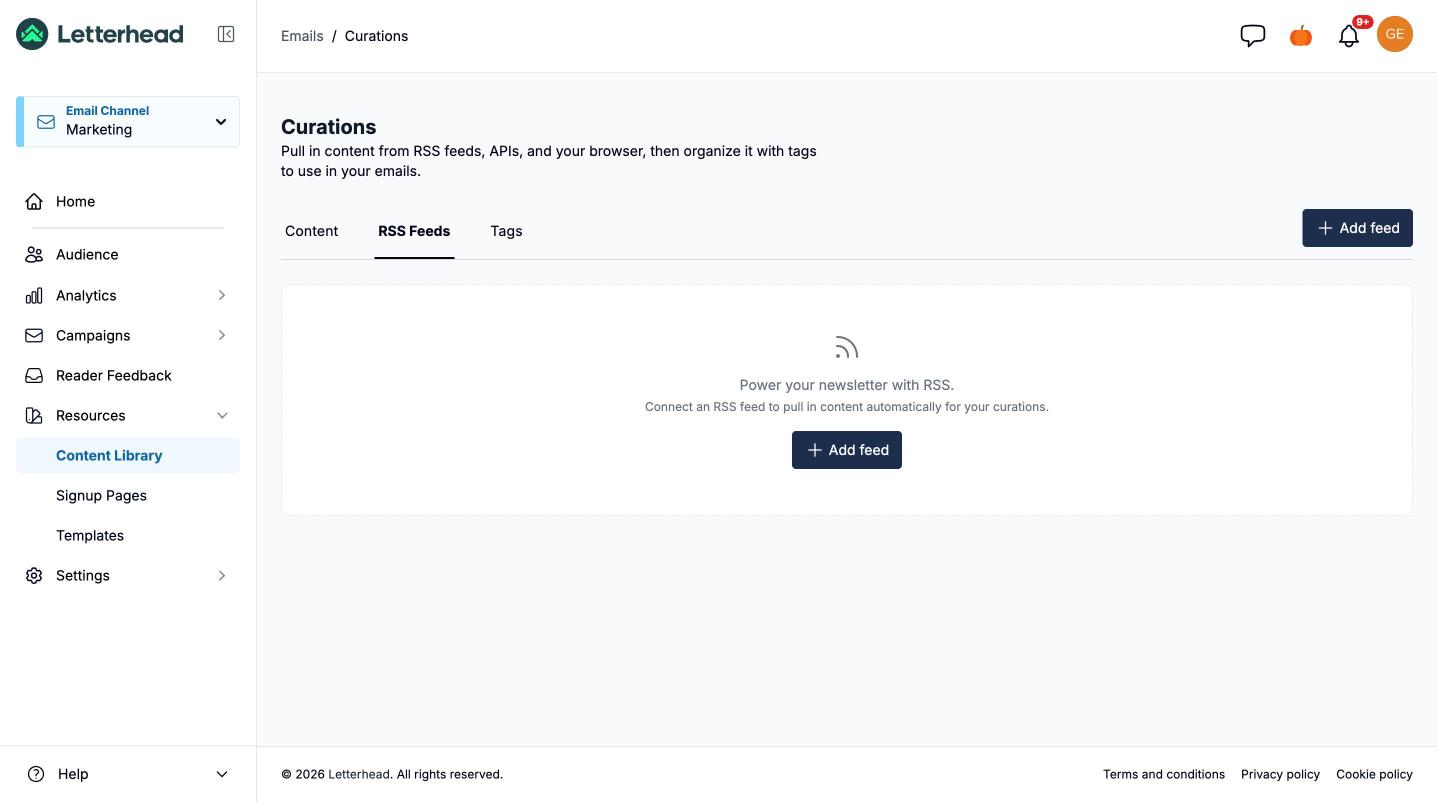
Before you start, add the feed under Resources → Content Library → RSS Feeds and check it passes the W3C Feed Validator; see adding RSS feeds. For a feed you’ll use in the RSS block, leave advanced feed crawling off. Letterhead fetches the feed live at preview rather than caching it, so a feed that suddenly comes in empty is usually being served from the feed’s own cache (WordPress often does this); ask the feed’s owner, or us.
- Drag the RSS block into your campaign or template and choose your feed.
- Pick the timeframe to pull from. The default is exact dates; in an automation, choose All days or another rolling option.
- Set Items to show (up to 10 with the heading-and-excerpt layouts) and Skip items (0 starts at the first article, 1 at the second).
- Click Load (in a campaign; templates load when they send).
Layouts. Heading, excerpt and image puts the image left, right or above the text. Heading and excerpt is text only. Full content runs each whole article, so expect to show only one to three items to keep the email a deliverable size.
Where each field comes from. The title comes from each item’s <title>, the excerpt from the first sentence of <description> (or <content>), the link from <link>, the date from <pubDate>, the author from <dc:creator>, and the source from the feed’s own title. Images come from <media:content>, falling back to <media:thumbnail> (an empty <media:content> stops the fallback), and full content from <content:encoded>. If images don’t show, see ensuring your images appear in the RSS block. An item already pulled from the same feed into the same channel, judged by its link, isn’t pulled twice.
Subject lines in automations. When an automation sends a campaign with an RSS block, the subject can fill itself in: Letterhead uses the campaign’s first heading, or failing that the first bold title in your RSS blocks, trimmed to the last whole word within 150 characters.
Switch a block’s source after you’ve built it
Section titled “Switch a block’s source after you’ve built it”Once you’ve styled a block just how you like it — the fonts, the image gap, the layout, the display options — you can point it at the other source without starting over. The block switches in place, keeping everything you set up.
- In the composer, click the content block to open its settings.
- At the top of the settings, use the source toggle: From Library or From URL.
- Pick the source you want. If the switch would cost you anything — the content sitting in the block, or a layout the new source can’t show — Letterhead asks you to confirm first. If it wouldn’t, the block simply switches over.
The confirmation is headed “Switch content source?” and spells out what you’re about to lose, so you never wipe a block by accident. For a block with content in it, that reads:
Switching the content source resets this block’s content. Your layout and style settings will be kept, but the content in this block will be removed.
Choose Switch to go ahead, or Cancel to leave the block as it is.
Your styling is safe. The switch only clears the content — the loaded article, or the cards a curation pulled in. Everything you configured stays: fonts, colors, padding, border, image gap and crop, column widths, call-to-action styling, and any curation filters you’d set. The block comes back as an empty placeholder of the new kind, ready to load, dressed exactly as it was.
Your layout comes across too, with one exception: Full content. A pasted link gives Letterhead the page’s headline, image and description — not the article body — so there’s nothing for a From URL block to run in full. A block set to Full content therefore lands on Image + Text when you switch it to From URL. Every other layout carries over untouched, including Bulleted list.
When that’s about to happen, the confirmation says so before you commit, naming both layouts:
The Full content layout isn’t available for a link, so this block will switch to Image + Text.
This is the one case where an empty placeholder gets a confirmation as well. A block you’ve set to Full content but never loaded has no content to reset — but it still loses the layout you chose, so Letterhead asks rather than changing it quietly.
If the block was showing a run of curated cards, switching replaces that whole run with a single empty block — a curation can fill several cards from one block, and a URL is a single item, so the run collapses back to one placeholder you can load from its new source.
Give each story one place to click
Section titled “Give each story one place to click”A fully set-up block links a story’s image, its headline and its read-more prompt to the same place. If you’d rather readers had one clear place to click, open the block’s Display Options and switch off either:
- Link the Image to the Story — the picture stays, but isn’t clickable. It’s offered on layouts that show an image.
- Link the Title to the Story — the headline keeps its styling, but isn’t a link. It’s offered wherever the headline shows.
Both start on, and each block has its own setting. The read-more prompt always keeps its link; to change how it looks or where it goes, see style the call to action. Dropping repeated links also makes your email a little lighter, which helps keep it under the size where Gmail cuts it short.
Automate a featured story instead of a one-off URL
Section titled “Automate a featured story instead of a one-off URL”If you regularly use the URL block for a single featured story, switch to a tag-driven workflow instead:
- Save the story to your Curations library (via RSS, extension, or API).
- Tag it — for example
featured. - In your template, use a Curation block filtered by that tag.
Your template never needs editing again — just move the tag and the right story loads.
Still can’t find what you need? Contact support.