

Company-Level CRM Audience Sync Integration (HubSpot & Mailchimp)
Edit in CMSOverview
Section titled “Overview”-
Available CRMs: HubSpot and Mailchimp.
-
Bi-directional Sync: Any changes to First Name, Last Name, and Email are reflected across both systems.
-
Channel Mapping: Map CRM audiences or subscription types to Letterhead channels for automatic syncing. (A channel is where you create and manage individual newsletters.)
-
Always Up-to-Date: Webhooks keep everything synced instantly, without needing manual imports.
Roles & Prerequisites
Section titled “Roles & Prerequisites”Who can set this up?
- Only Company Admins can configure or delete CRM integrations, since they apply across the company.
What you’ll need before setup:
-
API Key: Create a new Company API Key in Letterhead for the integration.
-
Server Prefix: Your server prefix (e.g.,
abc.app.tryletterhead.com) is required during setup. -
Company Requirement: CRM integrations are only available for customers with a company-level account. (Your CSM will confirm if your account qualifies.)
Hubspot Setup Instructions
Section titled “Hubspot Setup Instructions”1. Generate an API Key
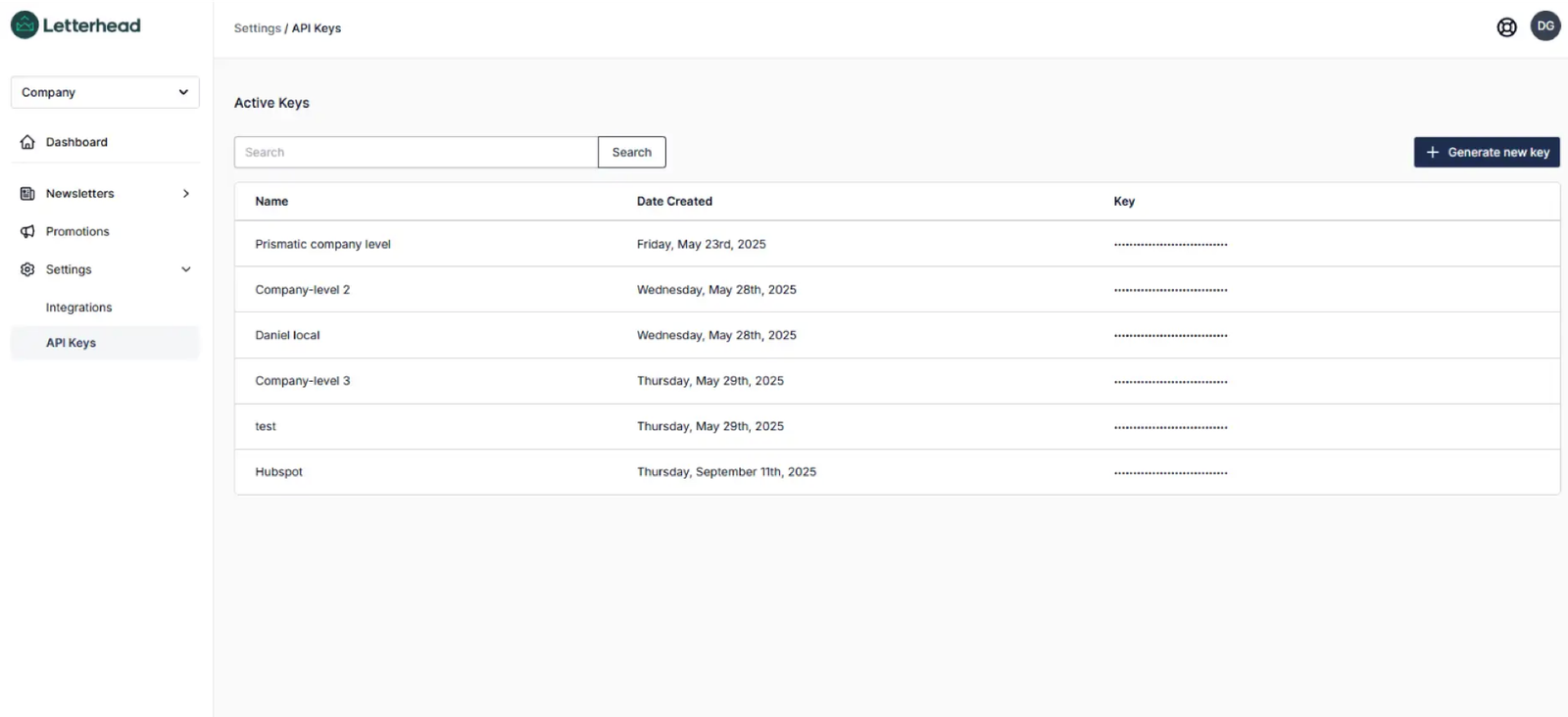
Section titled “1. Generate an API Key”- In Letterhead, go to Company Settings → API Keys.
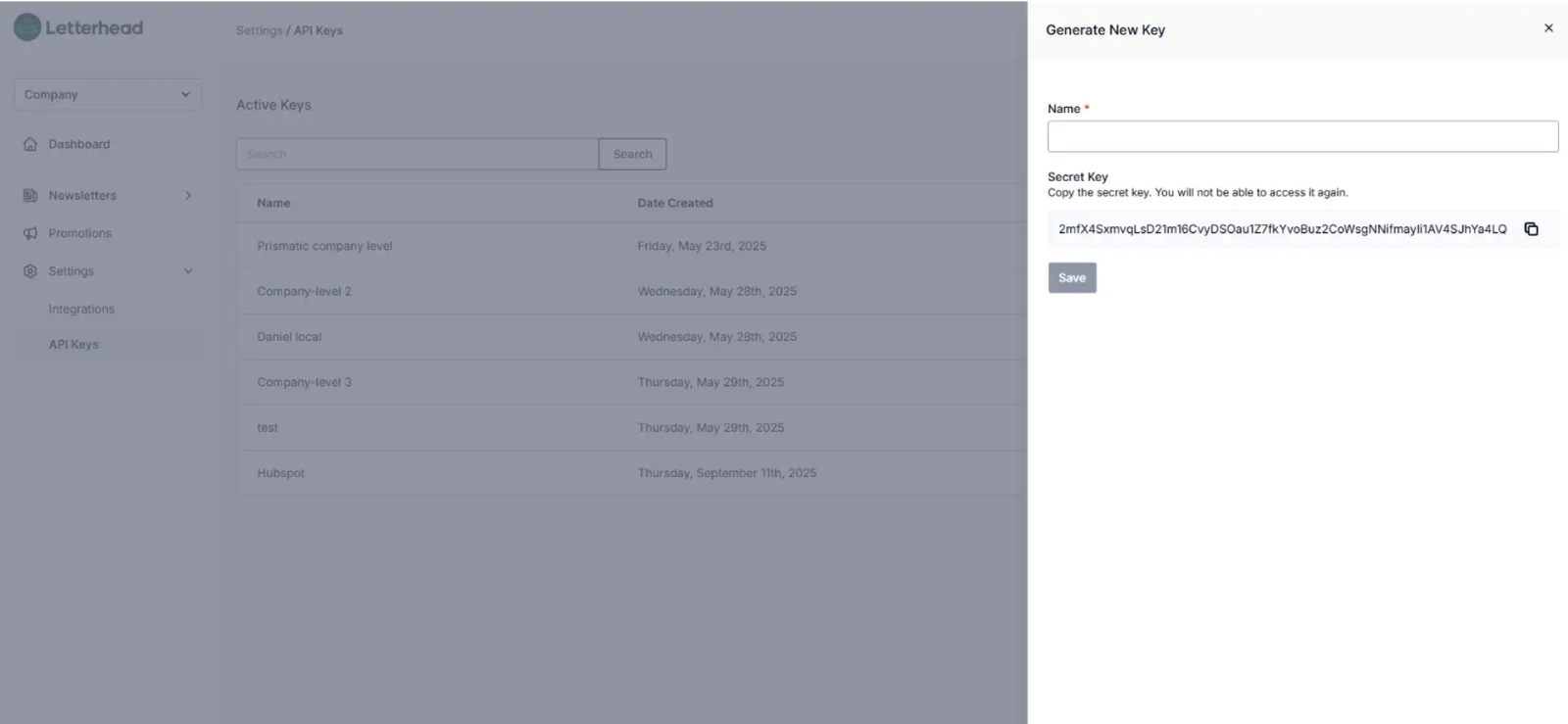
- Click Generate New Key.
- Copy the key for use during setup.
2. Configure the Integration
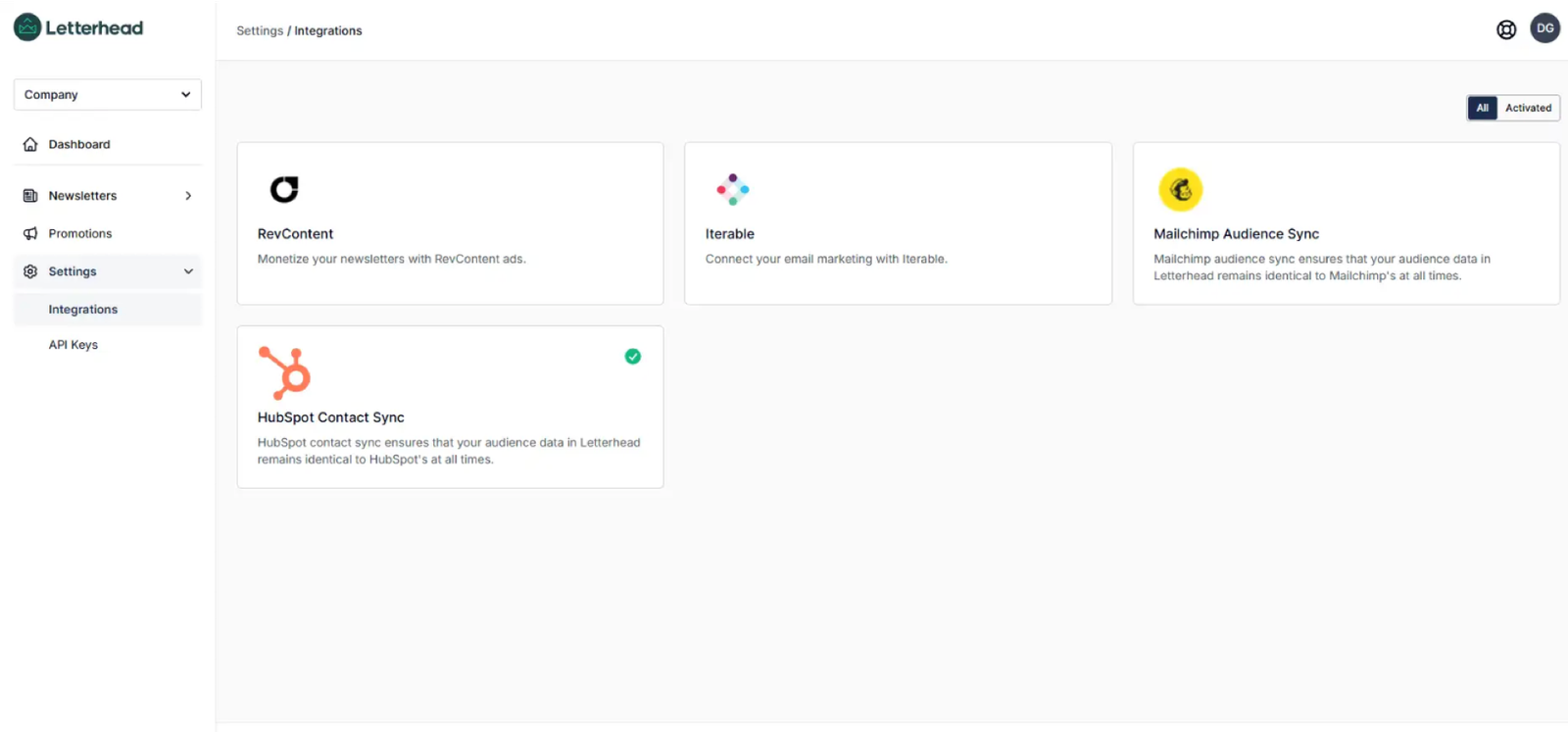
Section titled “2. Configure the Integration”- Go to Integrations in your Letterhead dashboard.
-
Select HubSpot.
-
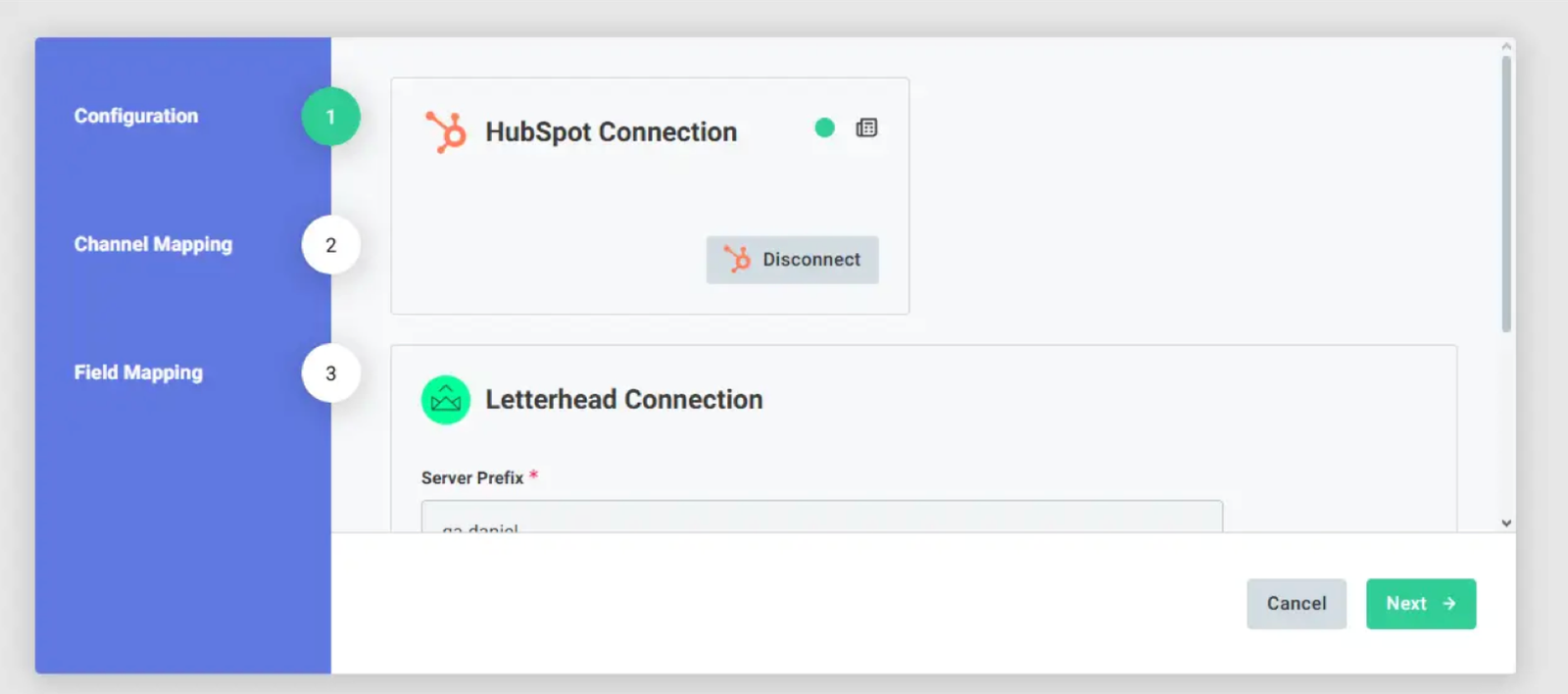
Connect your CRM account.
-
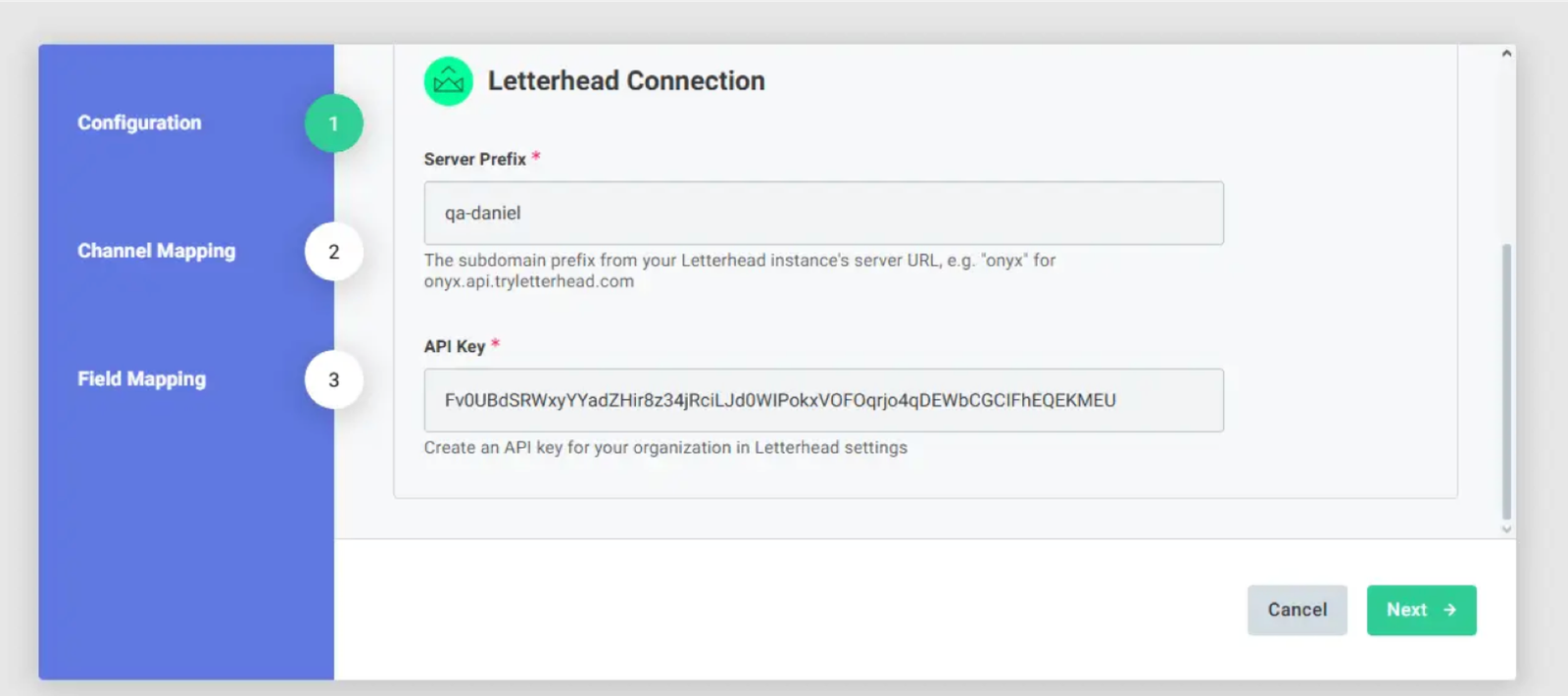
Enter your Server Prefix.
-
Enter the API Key you generated.
3. Map Subscription Types
Section titled “3. Map Subscription Types”-
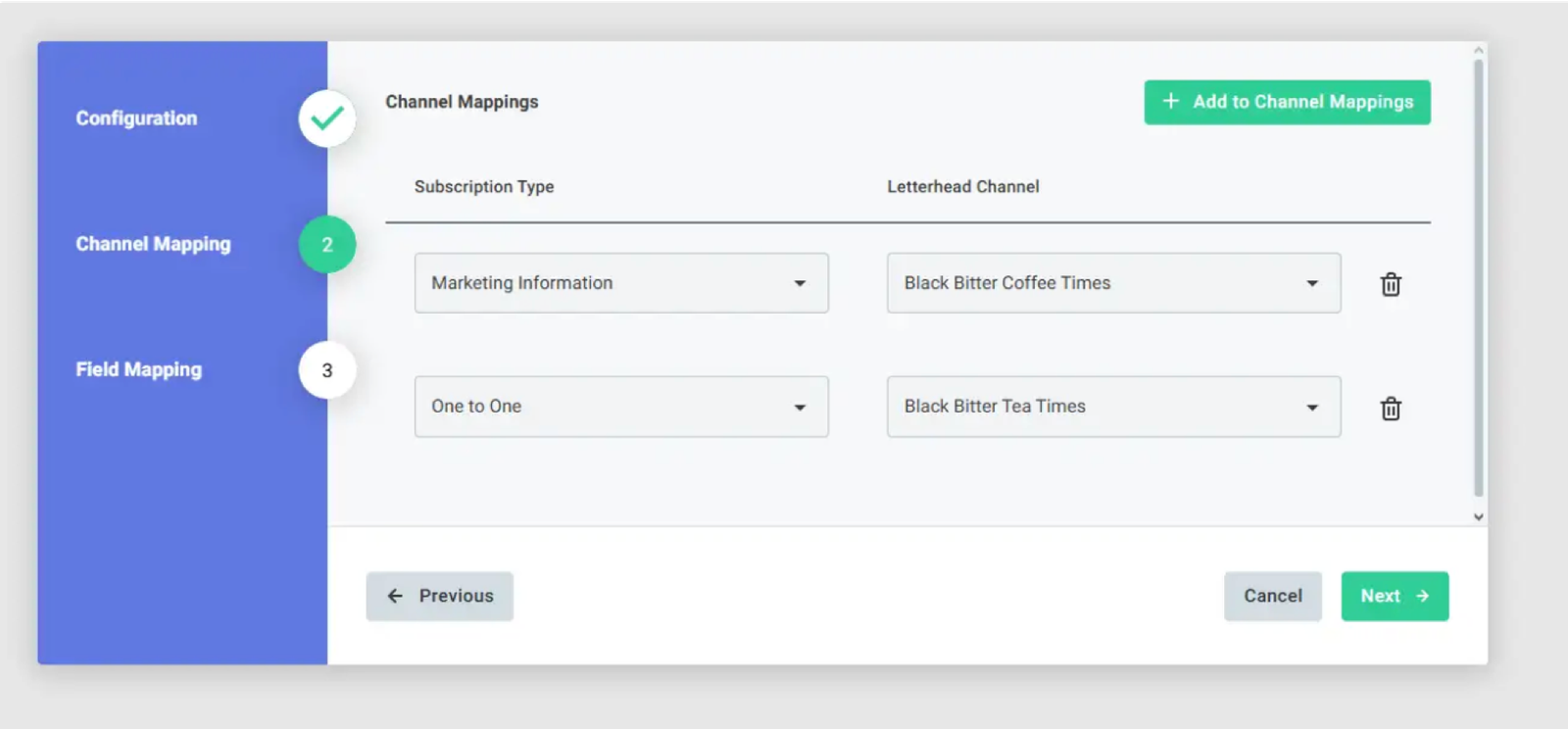
CRM: Map subscription types to Letterhead channels.
- In Letterhead, the subscription types will come over as Subscribed, Unsubscribed, or Not Subscribed statuses.
-
Supports one-to-many mapping (multiple subscription types can map to one channel).
4. Review Mapped Fields & Finish
Section titled “4. Review Mapped Fields & Finish”-
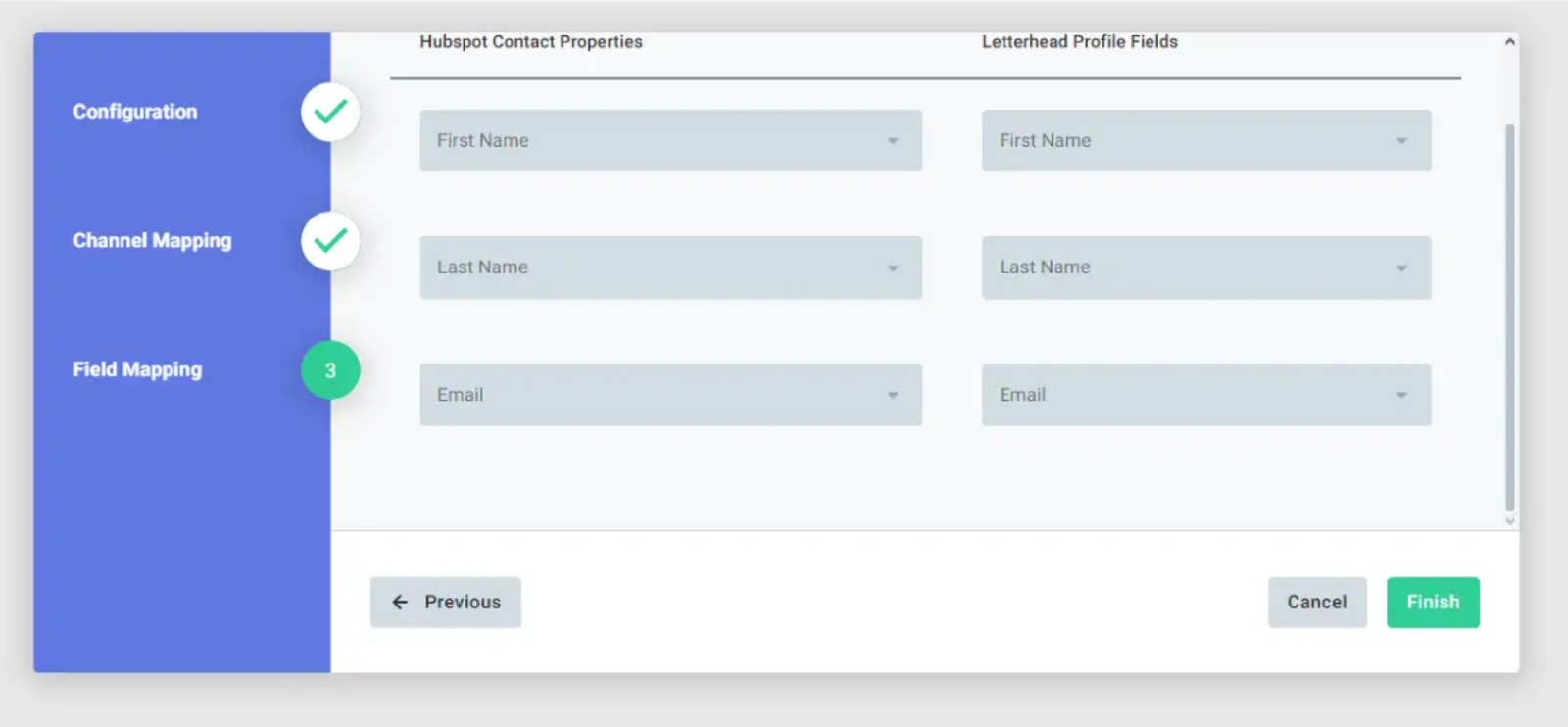
Confirm the synced fields (First Name, Last Name, Email).
-
Save and finish setup.
5. Verify the Sync
Section titled “5. Verify the Sync”-
Check the Letterhead channel you mapped.
-
Check your CRM contacts.
-
Confirm records match in both systems.
Managing the Integration
Section titled “Managing the Integration”-
Pause/Delete Integration
-
In Integrations, select the CRM integration.
-
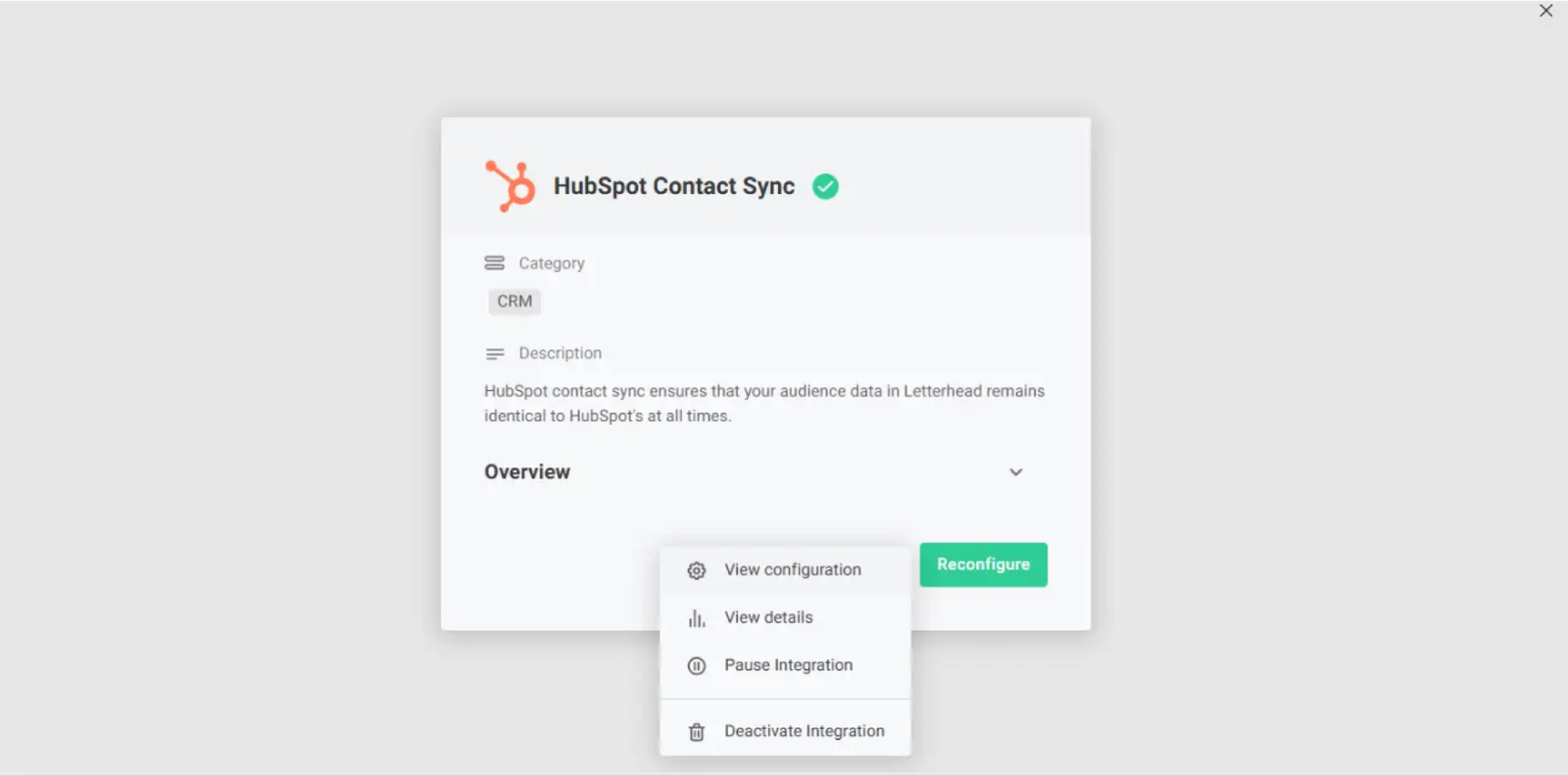
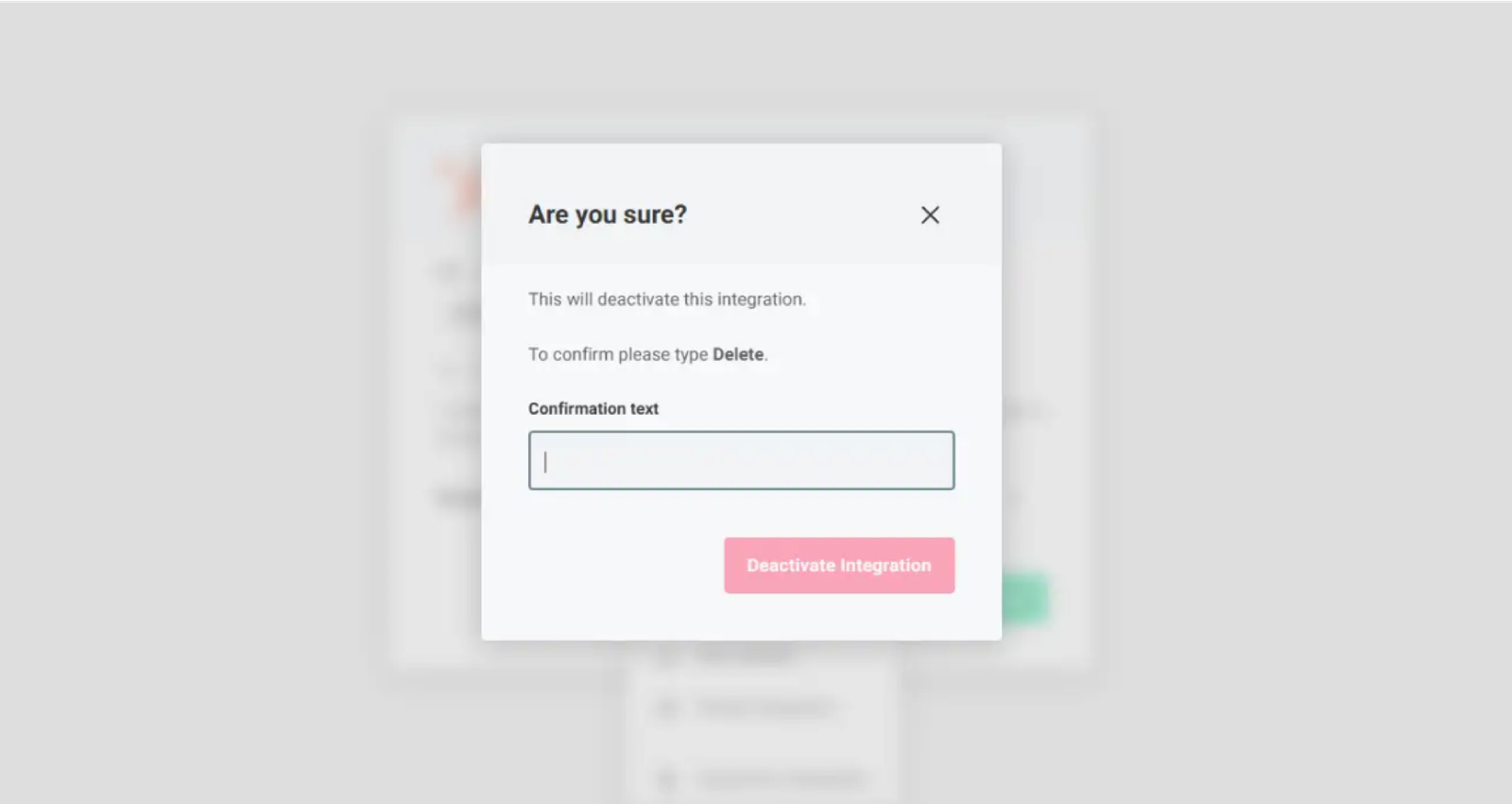
Choose More Options → Deactivate Integration.
-
Confirm by entering the text prompt.
-
-
Reconnection
-
If you disconnect, previously synced data remains.
-
However, syncing will stop until you reconnect.
-
Mailchimp Setup Instructions
Section titled “Mailchimp Setup Instructions”1. Generate an API Key
Section titled “1. Generate an API Key”- In Letterhead, go to Company Settings → API Keys.
- Click Generate New Key.
- Copy the key for use during setup.
2. Configure the Integration
Section titled “2. Configure the Integration”- Go to Integrations in your Letterhead dashboard.
-
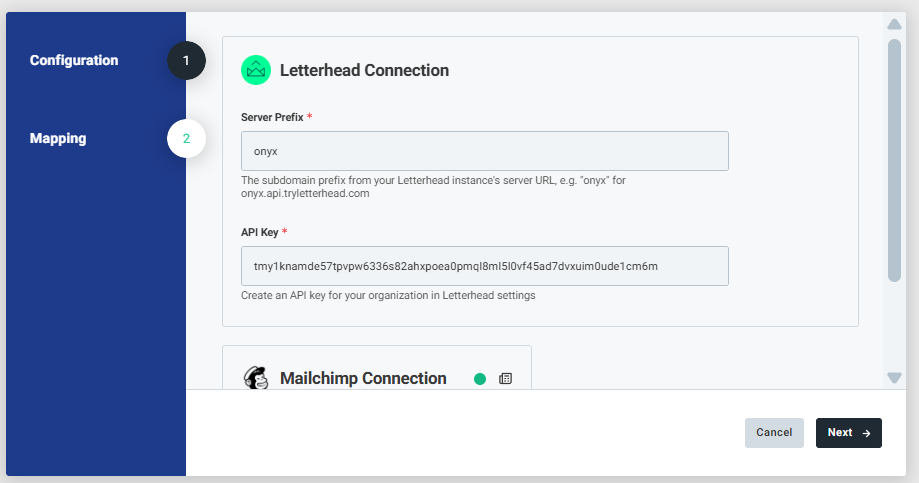
Select Mailchimp.
-
Connect your CRM account.
-
Enter your Server Prefix.
-
Enter the API Key you generated.
Once everything has been filled out select Next.
3. Fill out the Mapping details
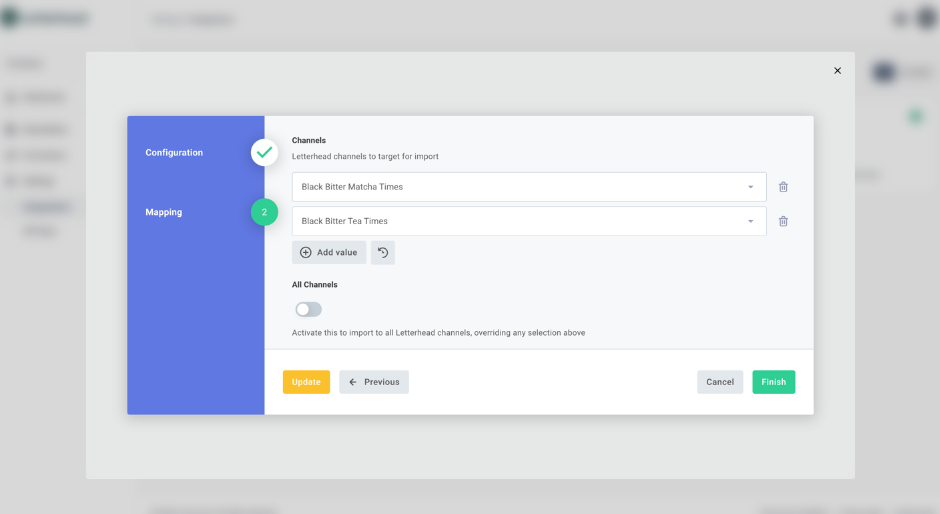
Section titled “3. Fill out the Mapping details”- Select the Channels you want to sync with mailchimp or select the All Channels toggle to sync with all channels
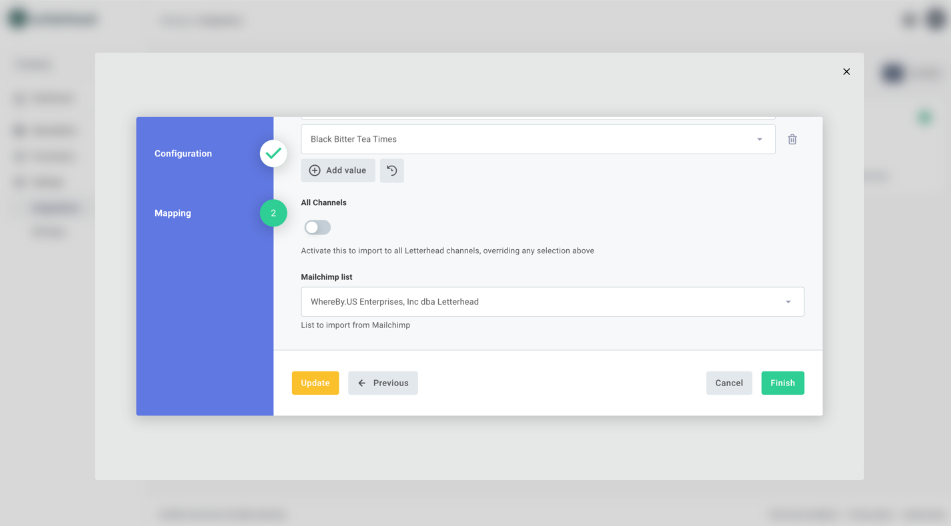
- Select the Mailchimp list that you want to sync with
- Review your selections and select finish once complete
4. Once the integration is configured there will be a green check mark on the integration card indicating that this integration is enabled.
Section titled “4. Once the integration is configured there will be a green check mark on the integration card indicating that this integration is enabled.”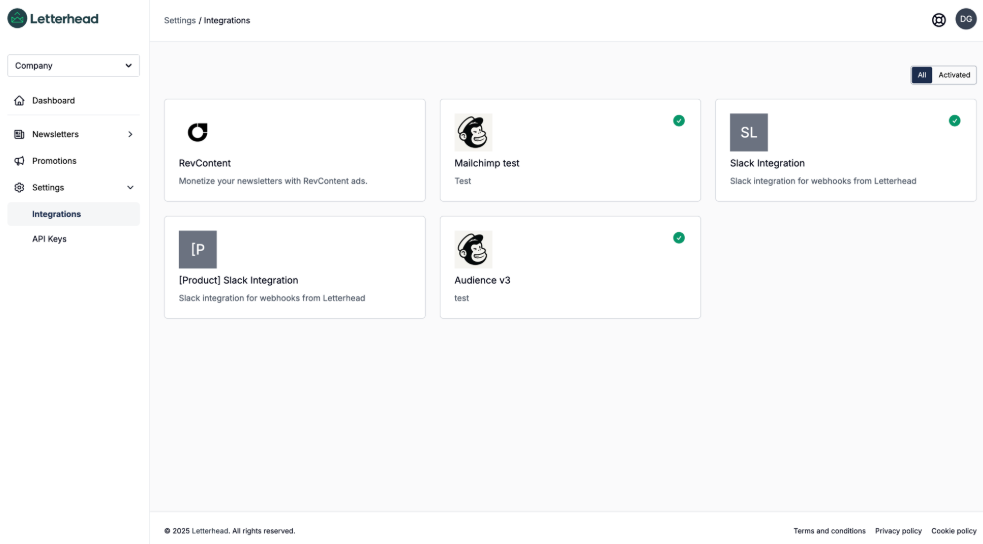
Behavior & Edge Cases
Section titled “Behavior & Edge Cases”Production Rule
Section titled “Production Rule”-
Only one CRM integration (HubSpot or Mailchimp) can run at a time.
-
Running both at once is not supported.
-
You must deactivate one before enabling the other.
Sync Behavior
Section titled “Sync Behavior”-
Webhooks automatically import and update contacts instantly.
-
Changes in the CRM (e.g., name edits) sync back to Letterhead, and changes in Letterhead sync back to the CRM.
-
No manual importing is needed once the integration is active.
Other Clarifications
Section titled “Other Clarifications”- Limited Fields: Only First Name, Last Name, and Email are synced. ](/support/contact-support/)
Still can’t find what you need? Contact support.