

How to Use the Letterhead WordPress Plugin
Edit in CMSOverview
Section titled “Overview”The Letterhead WordPress Plugin allows Letterhead organization and company admins to connect their WordPress site directly to their Letterhead channels. Once connected, the plugin automatically syncs new and updated WordPress posts & tags into the Letterhead Curations Library, making it easy to organize, manage, and publish website content in your newsletters.
To set up the plugin, you must be either a Company Admin or an Organization Admin.
Letterhead WordPress plugin helps you:
-
Automatically sync and curate WordPress content by mapping posts, authors, and key metadata directly into the Letterhead Curations Library, keeping newsletters up to date with minimal manual effort.
-
Maintain consistent tagging across platforms by syncing and managing WordPress tags in Letterhead, with updates reflected automatically.
Step-by-Step Instructions
Section titled “Step-by-Step Instructions”Part 1: Install the Plugin
Section titled “Part 1: Install the Plugin”-
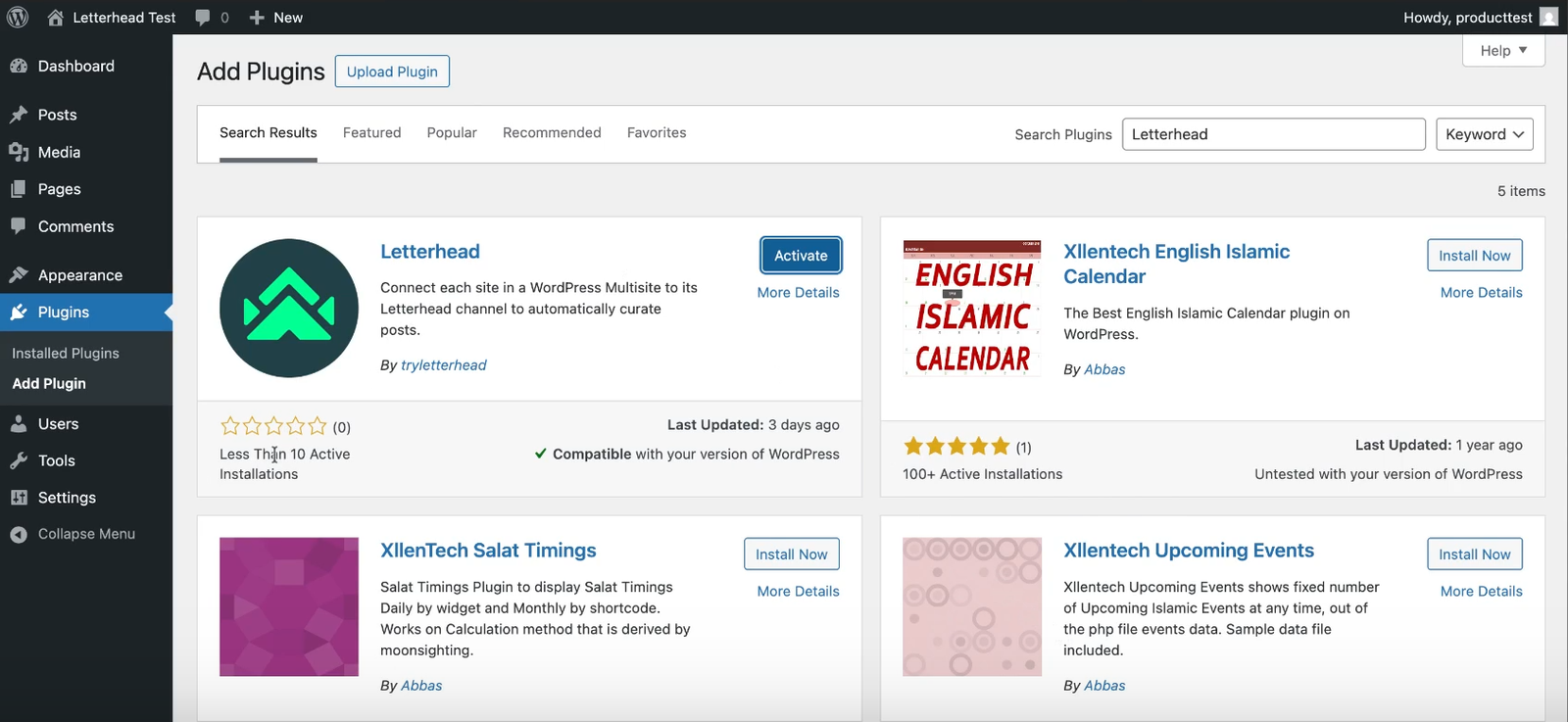
Log in to your WordPress Dashboard.
-
Navigate to Plugins in the left-hand sidebar and click Add New.
-
In the search bar, type Letterhead.
-
Locate the plugin created by tryletterhead and click Install Now.
-
Once installed, click Activate.
Part 2: Generate Your API Key
Section titled “Part 2: Generate Your API Key”To connect WordPress to Letterhead, you need a secure key from your Letterhead account.
-
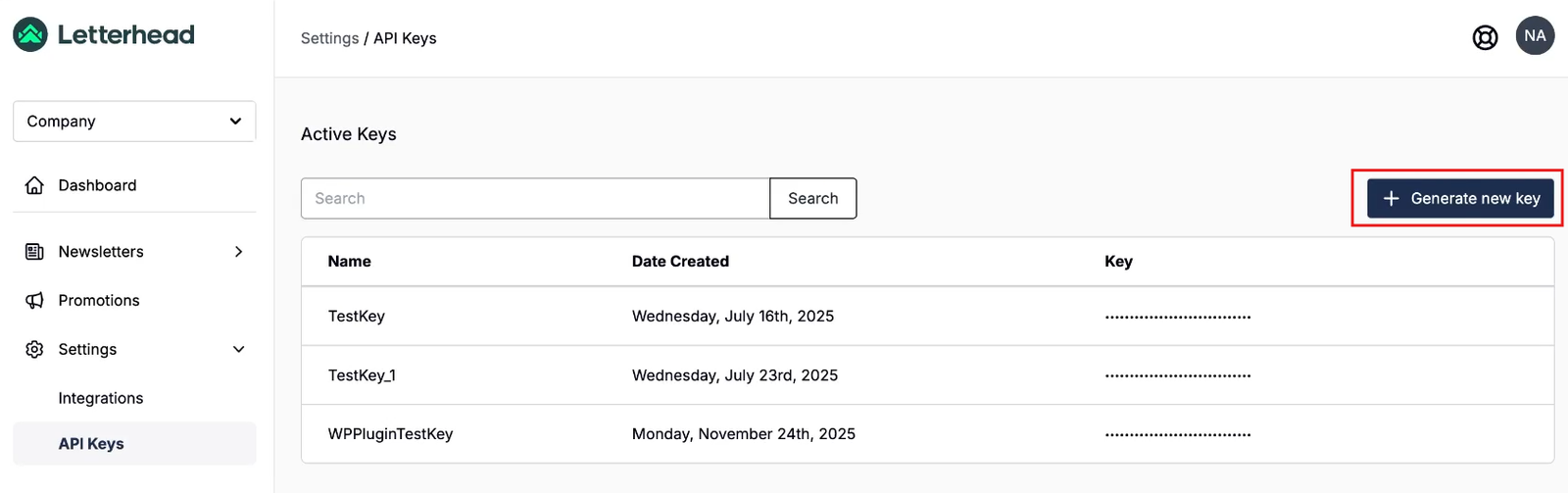
Open a new tab and log in to your Letterhead Dashboard.
-
Go to Settings and select API Keys from the menu.
-
Click the + Generate new key button.
-
Enter a name for the key (e.g., “WordPress Connection”) and click Save.
Part 3: Configure Plugin Settings
Section titled “Part 3: Configure Plugin Settings”-
Return to your WordPress Dashboard.
-
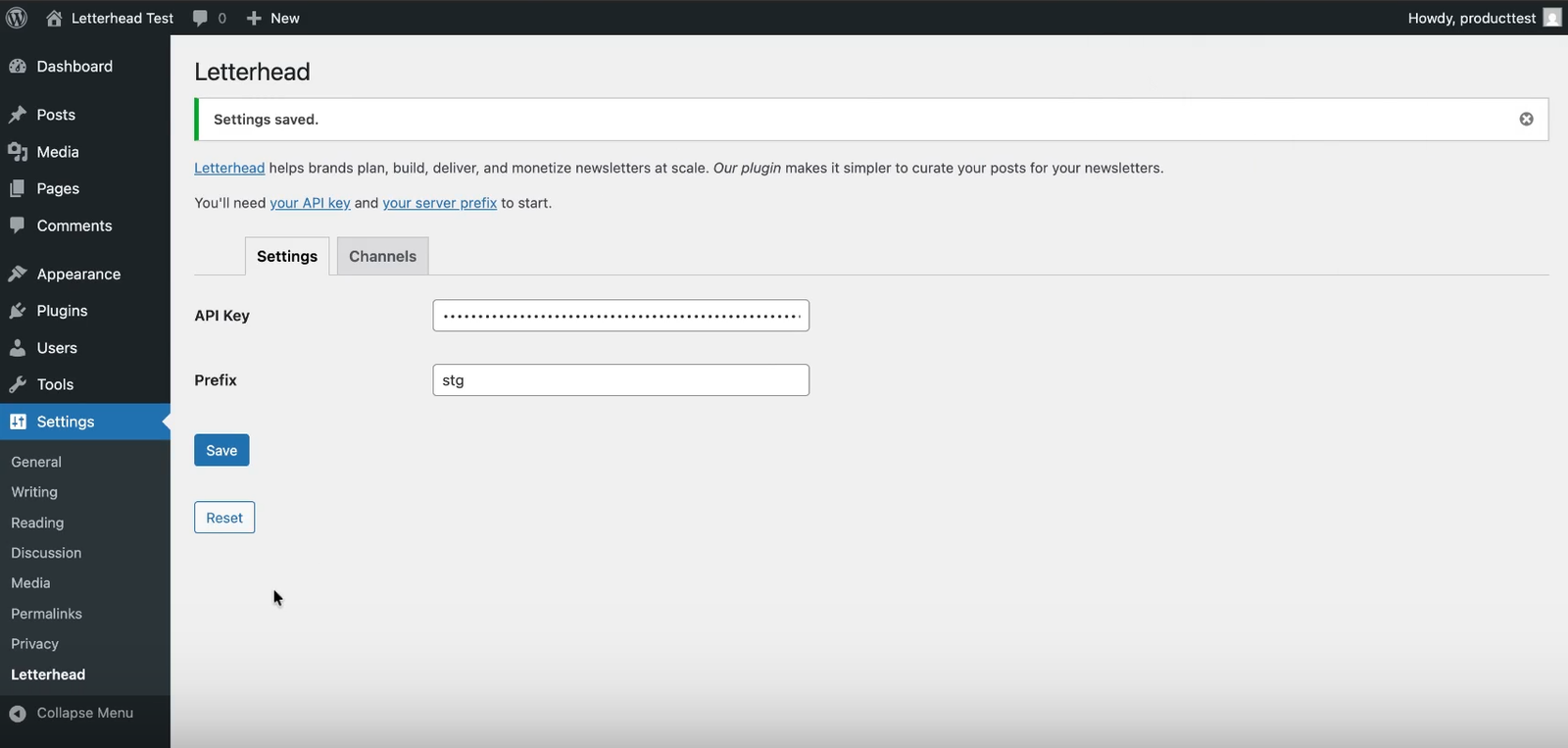
Navigate to Settings > Letterhead.
-
Paste the key you copied into the API Key field.
-
Enter a Prefix for your site (this helps identify the source of the content in Letterhead).
-
Click Save. You should see a “Settings saved” confirmation message.
Part 4: Map Your Channels
Section titled “Part 4: Map Your Channels”-
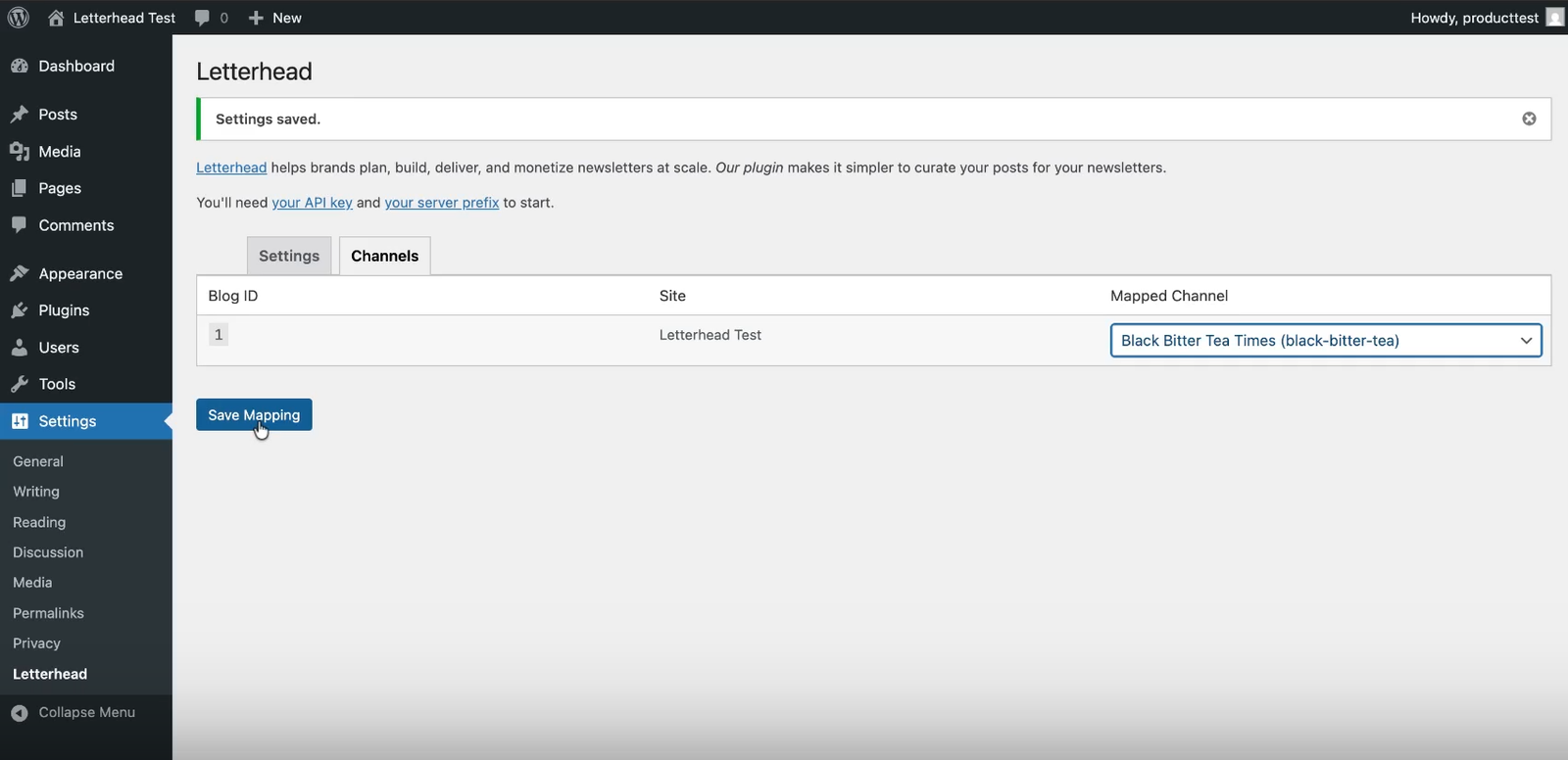
On the Letterhead settings page in WordPress, click the Channels tab.
-
You will see your Site Name listed. Click the dropdown menu under Mapped Channel.
-
Select the specific Letterhead channel you want your WordPress posts to feed into.
-
Click Save Mapping.
Part 5: Create and Use Content
Section titled “Part 5: Create and Use Content”-
Create and Publish a new post in WordPress.
-
Go back to your Letterhead Dashboard.
-
Navigate to Newsletters > Curations.
-
Your new WordPress post should appear in the list with the source marked as “Application.”
-
Your WordPress categories are automatically mapped to Letterhead tags, meaning each WordPress category will appear as a curation tag within Letterhead.
Troubleshooting & FAQs
Section titled “Troubleshooting & FAQs”- My API key isn’t working. If you receive an error regarding the API key, return to the Letterhead Settings > API Keys section, generate a brand new key, and paste the new secret into your WordPress settings.
- My posts aren’t showing up in Letterhead. Ensure that you have clicked Save Mapping in the Channels tab of the plugin settings. If a channel is not selected, Letterhead will not know where to route your content.
Still can’t find what you need? Contact support.