

Automatically Tag New RSS Feed Items
Edit in CMSIntroduction
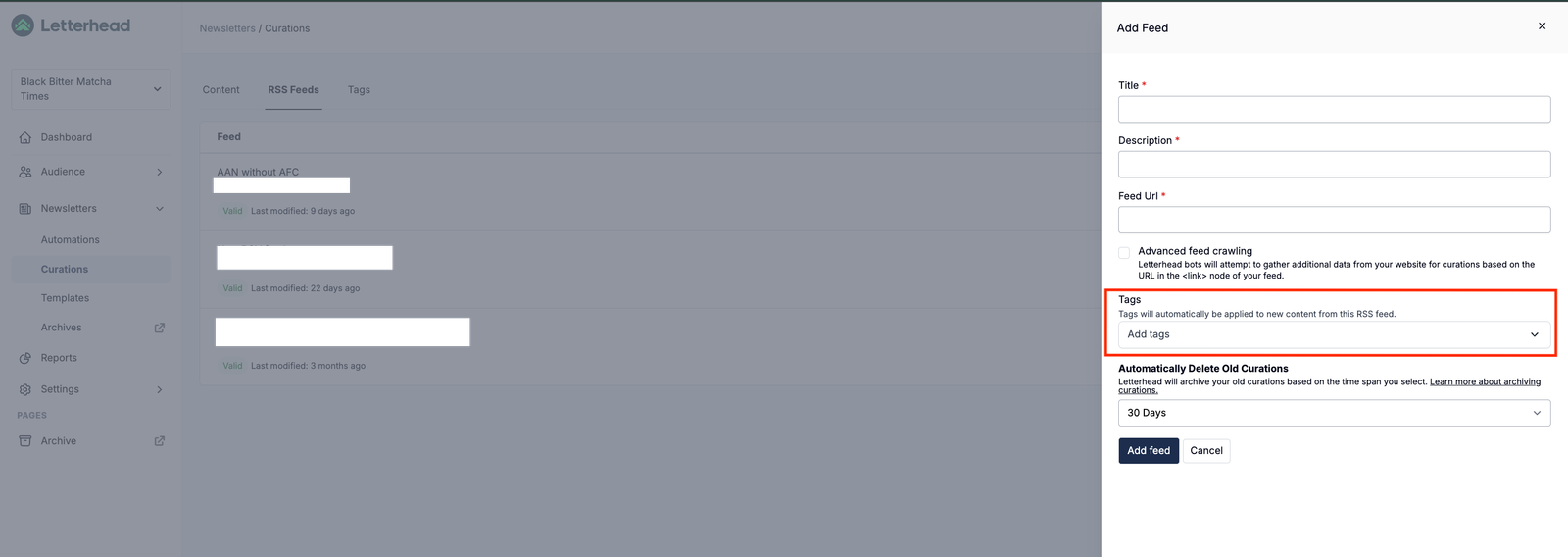
Section titled “Introduction”With automatic feed tagging, you can save time and keep your curated items neatly organized. When setting up or editing an RSS feed, you can assign one or more predefined tags that will be automatically applied to all new items imported from that source.
Here’s what this feature lets you do:
-
Tag selection in feed settings: Choose from existing tags or create new ones when configuring a feed.
-
Automatic tag application: All new items from that feed automatically receive the selected tags upon import.
-
Editable tags: You can still edit or remove tags from individual items after import.
-
Per-feed control: Each feed can have its own default tag set.
ℹ️ Note
Updating tags in the feed settings affects only future RSS feed items, not existing items.
How to Set Up Automatic Tags for a Feed
Section titled “How to Set Up Automatic Tags for a Feed”-
Go to Newsletter → Curations → RSS Feeds.
-
Click Add Feed, or open an existing feed and select Edit Feed.
-
In the feed settings, search for an existing tag or create a new one by typing it and pressing Enter.
-
Click Update Feed or Create Feed to save your changes.
Once saved, all new items imported from that feed will automatically include the tags you’ve set up.
⚠️ Tag Formatting Rules
Tags can include letters, numbers, and hyphens, but cannot contain spaces or special characters. For example, marketing-trends is valid, while marketing trends or marketing@2025 are not allowed.
Example Use Case
Section titled “Example Use Case”Suppose you import content from multiple marketing blogs:
-
For your SEO News feed, add the tag
seo-updates. -
For your Email Marketing Tips feed, add the tag
email-strategy.
From then on:
-
New articles from the SEO feed will automatically include
seo-updates. -
New articles from the Email Marketing feed will automatically include
email-strategy.
This helps you maintain consistent tagging and makes it easier to filter and locate items when building your newsletters.
Still can’t find what you need? Contact support.