

Curating Articles with Letterhead’s Browser Extension
Edit in CMSIntroduction
Section titled “Introduction”Letterhead’s Chrome extension enables you to capture and save articles directly from websites into your curations library. You can customize metadata such as title, excerpt, image, and tags before saving, ensuring your newsletters remain on-brand and well-organized.
Prerequisites
Section titled “Prerequisites”Before you begin, ensure you have:
-
Chrome Browser: The Letterhead browser extension works on Google Chrome Browser.
-
Letterhead Chrome Extension Installed: For installation instructions, refer to our How to Use the Letterhead Browser Extension guide. Or download directly from the Chrome Web Store: Letterhead Extension.
-
Letterhead Login Credentials: Your Letterhead app login credentials, including your email address and password.
-
Tenant Prefix: Follow the steps below to determine your tenant prefix
Open the Letterhead web app and observe the URL in your browser. For example:
https://app.tryletterhead.com/organizations/black-bitter-coffee-brand/channels/black-bitter-matcha-times-
No prefix before “app”:
If the URL begins with https://app.tryletterhead.com/…, your tenant prefix islh1- Example: https://app.tryletterhead.com/organizations/… → tenant prefix =
lh1
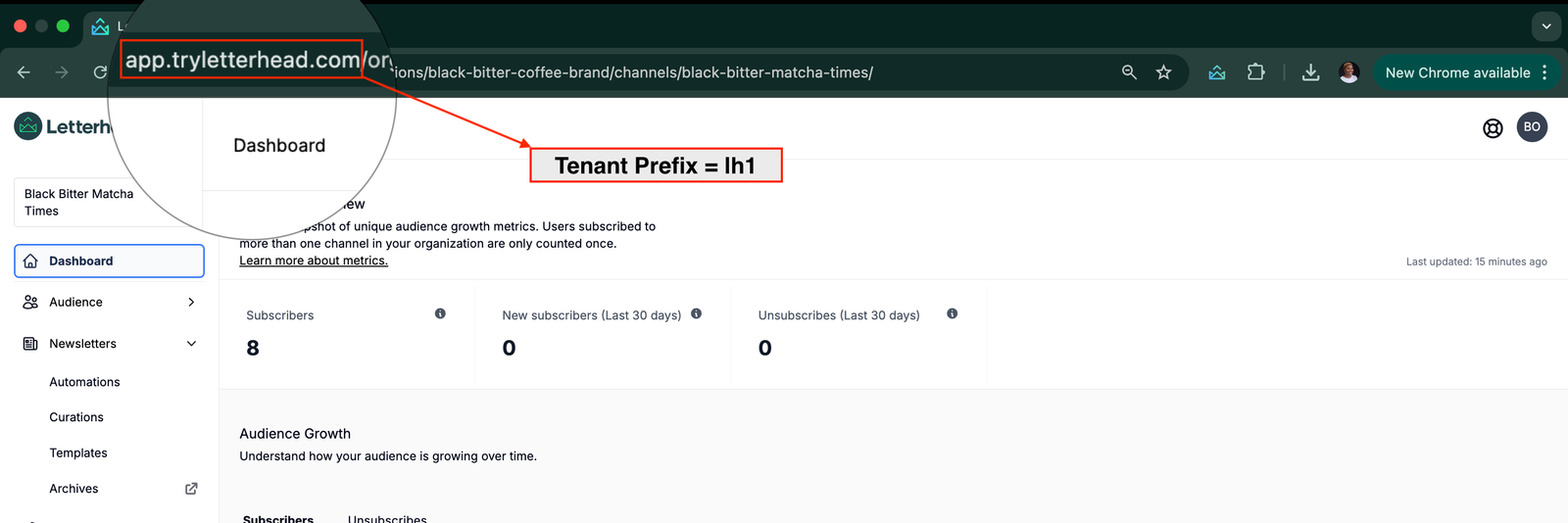
- Example: https://app.tryletterhead.com/organizations/… → tenant prefix =
-
With a prefix before “app”: If the URL begins with
https://<prefix>.app.tryletterhead.com/..., that<prefix>is your tenant prefix-
- Example 1: https://abc.app.tryletterhead.com/organizations/… → tenant prefix =
abc - Example 2: https://xyz.app.tryletterhead.com/organizations/… → tenant prefix =
xyz
- Example 1: https://abc.app.tryletterhead.com/organizations/… → tenant prefix =
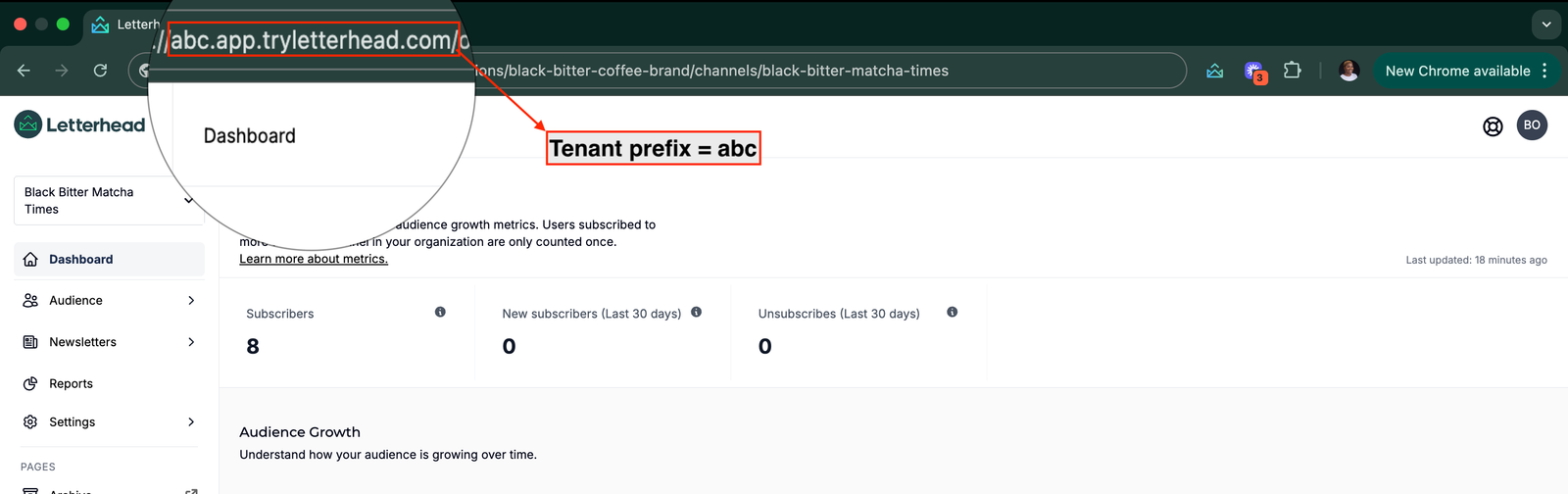
-
-
Sign In to the Extension
Section titled “Sign In to the Extension”- Open an Article Page: Navigate to any web page containing the article you want to curate.
- Launch the Extension: Click the Letterhead extension icon in Chrome’s toolbar.Enter Tenant Prefix: When prompted, input your tenant prefix (see “Prerequisites” above).
- Redirect to Sign-In Page: After entering the prefix, you’ll be taken to the Letterhead sign-in screen.
- Enter your Letterhead email and password, then click Submit.
ℹ️ Note
Restricted or paywalled pages may block metadata retrieval; confirm the page is publicly accessible before attempting to curate
Curate an Article
Section titled “Curate an Article”After signing in successfully, the extension panel will display options for curating the current webpage. Ensure you are viewing the article you wish to curate, then proceed with the following steps.
- Select the Channel: In the extension panel’s dropdown, choose the channel where this article should be added.
- Click “Curate” : This action loads editable metadata fields in the extension panel.
- Update Metadata Before Saving:
- Title: Adjust the suggested title if needed for clarity or tone.
- Excerpt: Add or refine a concise blurb/summary to provide context.
- Image: The extension may auto-detect an image. Keep it or select/upload a different relevant image.
- Tags: Choose existing tags or create new ones to categorize the article effectively.
- Click “Save Curations”
- After saving, a confirmation message appears indicating the article was successfully saved to your curations library.
Still can’t find what you need? Contact support.